

Beskrivelse
Run your entire ticketing workflow inside WordPress. No platform service fees, no per-ticket commissions — you only pay your payment processor (Stripe, PayPal, etc.) like any WooCommerce product.
Event Tickets with Ticket Scanner turns any WooCommerce product into a scannable event ticket — complete with QR code, downloadable PDF, and a built-in mobile ticket scanner for your team at the door.
Unlike ticketing platforms that charge service fees on paid tickets, this plugin adds no per-ticket commission — you keep your ticket revenue (minus your payment processor’s standard fee). Unlike other WordPress plugins, you get a visual seating plan designer and a ticket PDF designer included — not as expensive add-ons.
Active on 1,000+ WordPress sites — from small community events to large concert venues.
Who is this for?
- Concert & festival organizers — sell general admission or assigned seats with interactive seat selection
- Theaters & venues — design your seating layout with drag & drop, let customers pick their seats
- Sports events & arenas — handle high volumes with offline fallback and team scanner access
- Clubs, spas, gyms & theme parks — sell multi-entry passes, family tickets, or memberships with expiration
- Community events & fundraisers — get started in minutes with the free version (up to 50 tickets)
How it works — 3 steps
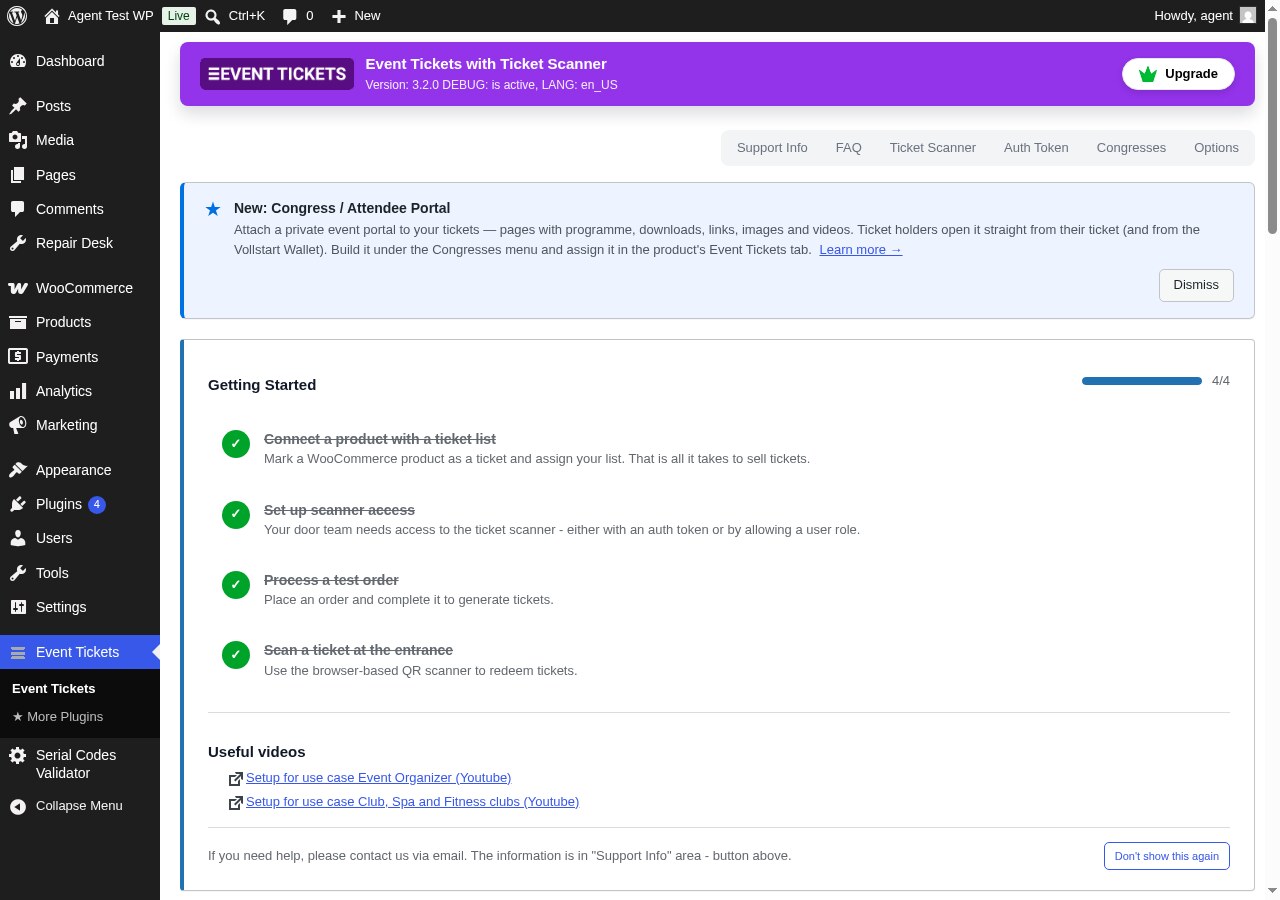
- Install the plugin and create a ticket list under “Event Tickets”
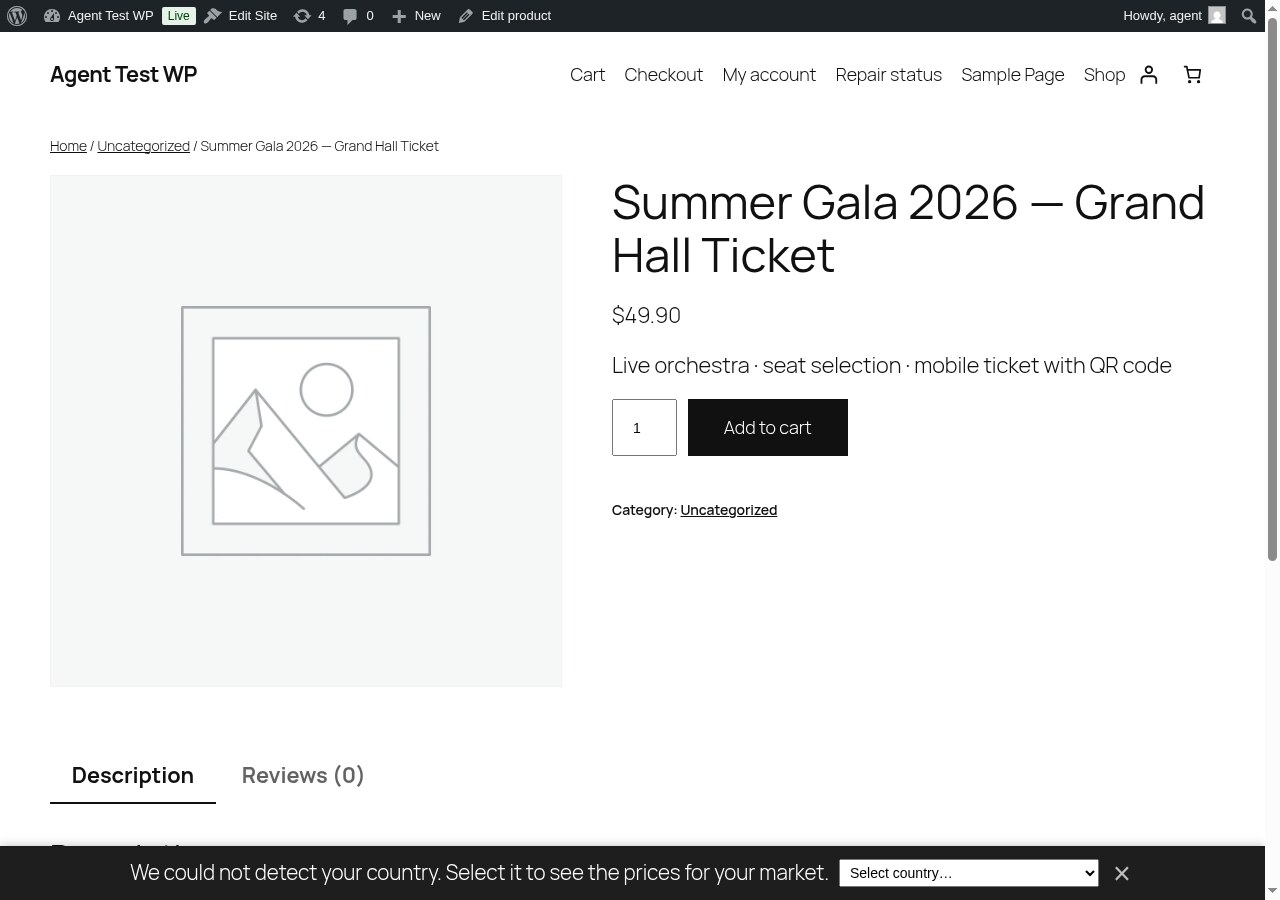
- Enable “Ticket Sales” on any WooCommerce product
- Customers receive a unique QR code ticket — scan and redeem at the entrance
That’s it. No coding required. Watch the quickstart video
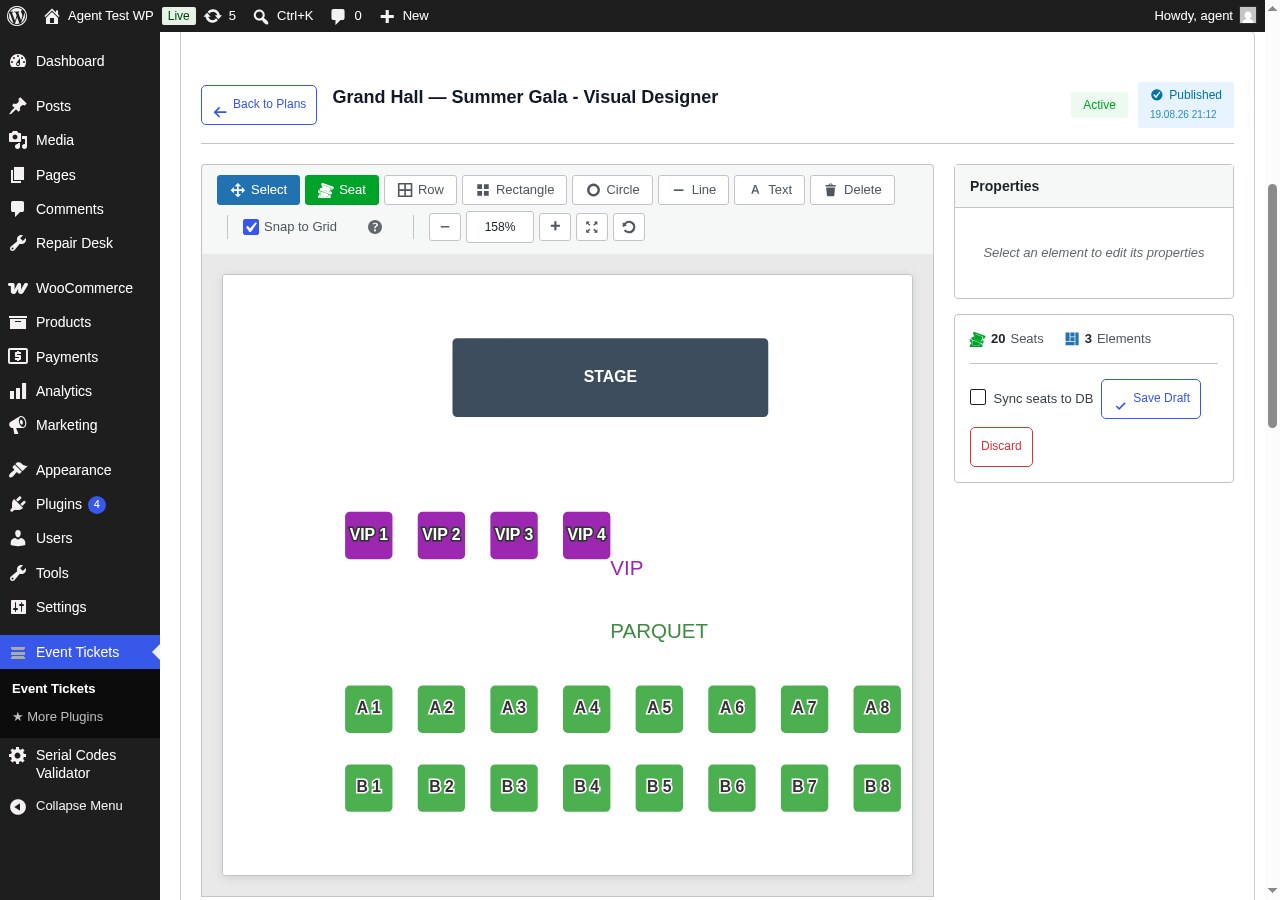
🎨 Visual Seating Plan Designer
Create professional venue layouts without any design tools:
- Drag & drop seats, shapes, labels, and text onto your canvas
- Upload venue floor plans as background images
- Rotate, duplicate, and bulk-edit elements
- Color-code seat categories and pricing tiers
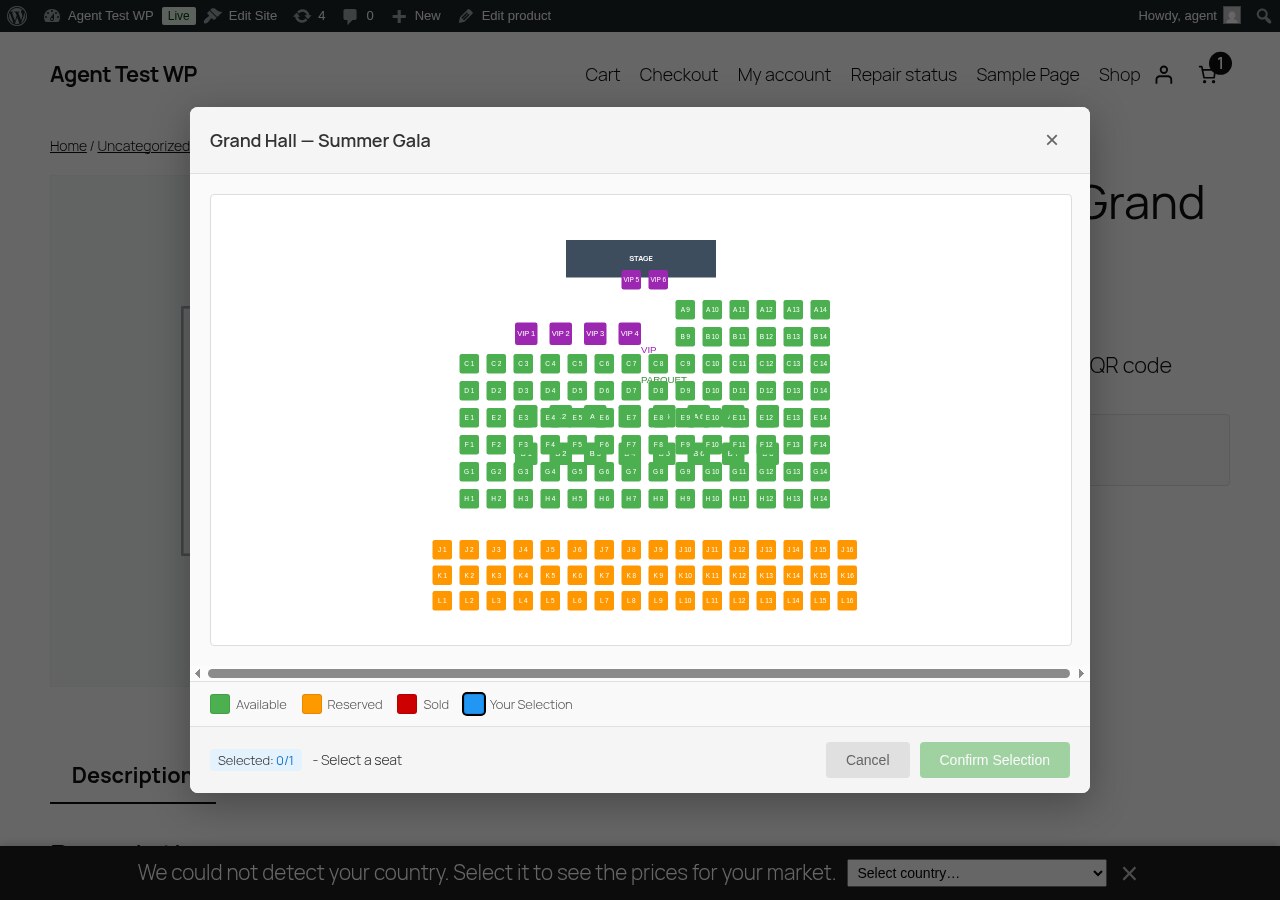
- Customers see a real-time interactive seat map during checkout
- Seats are automatically blocked during checkout and released on cancel/refund
🎟️ Ticket PDF Designer
Design tickets that match your brand — not generic templates:
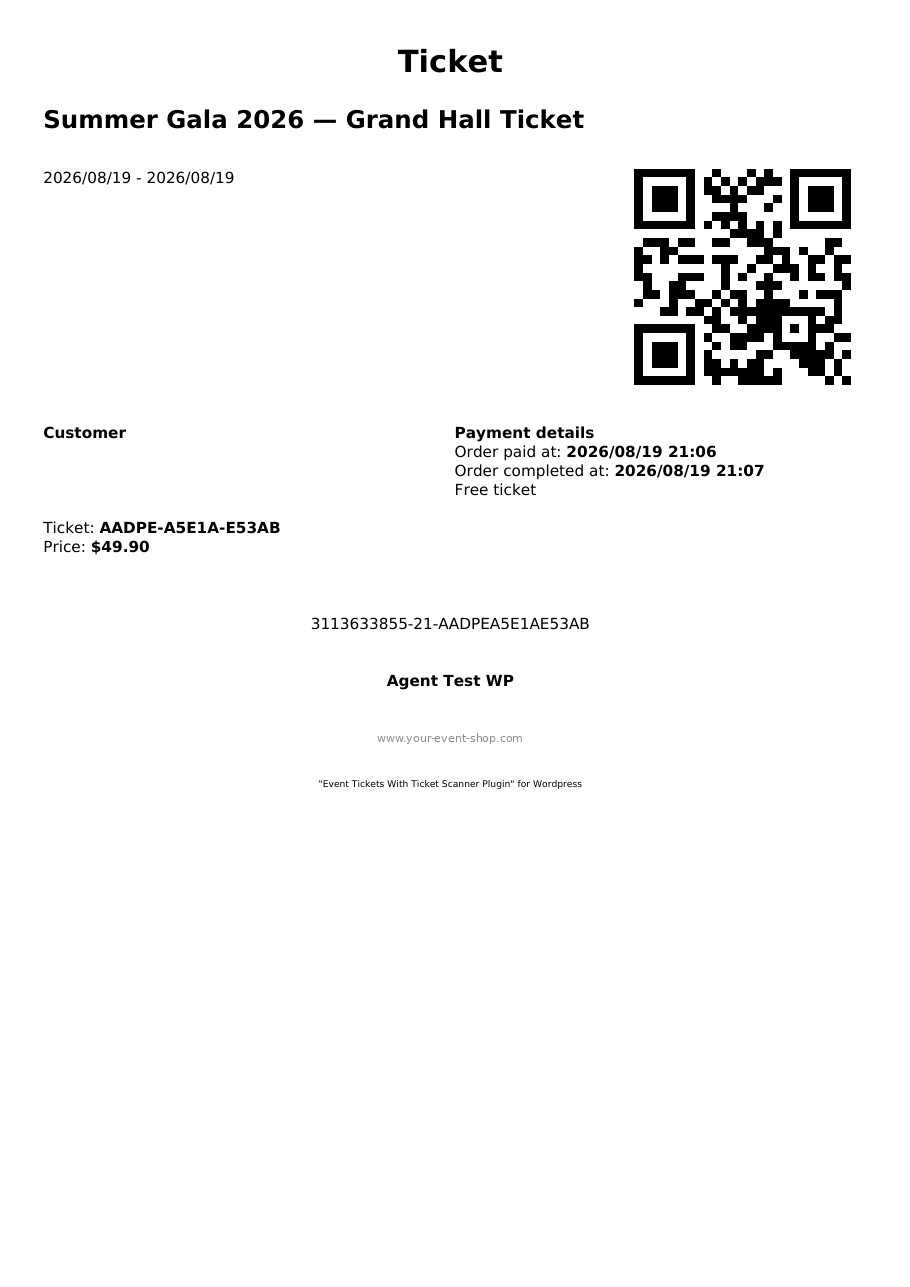
- Add your logo, custom colors, header and background images
- Position QR codes exactly where you want them
- Create event badges for staff and VIP passes
- Multi-page PDF support with attached documents
- Full bleed mode for edge-to-edge designs
📱 Built-in Ticket Scanner
No extra app needed. The scanner runs in any mobile browser — or install it as a PWA:
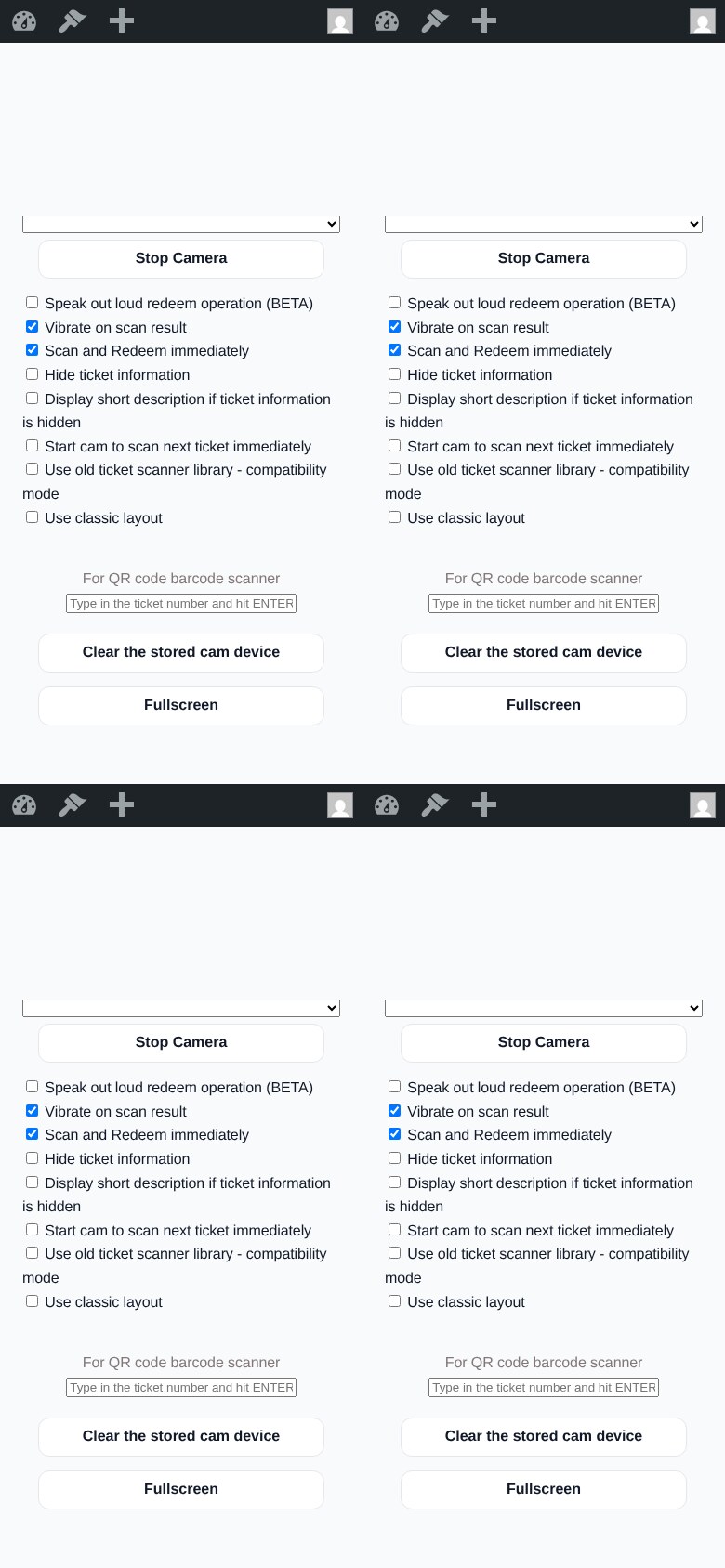
- Scan QR codes with your phone camera — works on iOS and Android
- Install as PWA — add to home screen for instant launch without browser chrome
- Fullscreen mode — immersive scanning with a single tap
- Haptic feedback — vibration confirms valid/invalid tickets instantly
- Grant team members scanner access via Auth Tokens (no WordPress login needed)
- See ticket details, seat position, and venue map instantly after scan
- Voice output confirms valid/invalid tickets for fast processing
- Protection against fake tickets, double redemption, and brute-force attempts
- Supports hardware barcode scanners for high-traffic entrances
- Customizable theme color to match your brand
📲 Vollstart Wallet — All Tickets in One App
Your customers can collect tickets from multiple shops in one free app:
- Vollstart Wallet at wallet.vollstart.com — a Progressive Web App that works on iOS, Android, and desktop
- Tickets are added with one click from the ticket page or order email
- QR code always available — even offline
- Privacy first — ticket data flows directly from your shop to the customer’s browser. Vollstart never receives or stores any data
- Learn more about security & privacy
Enable it in Settings Digital Wallets. Free for all users.
🎓 Congress & Attendee Portal
Give ticket holders a private event portal — no extra login, no separate app. Assign a congress to any ticket product and buyers reach it straight from their ticket ID.
- Organize content into pages — a start page plus as many pages as you need (Speakers, Programme, Downloads, Sponsors …), with a sidebar on desktop and a hamburger menu on mobile
- Rich section types — formatted text, a day-by-day programme schedule, downloadable files, link lists, image galleries, single images, and embedded videos (paste a YouTube/Vimeo link or upload your own)
- Password-protect individual sections for VIP or speaker-only content
- Fast by design — the start page loads instantly and other pages are fetched on demand, so even congresses with dozens of speakers stay snappy
- Installable & offline-friendly — the portal ships as a mini Progressive Web App
- Time-controlled access — open the portal a set number of hours before the event and keep it available for a chosen number of days afterwards
- Recurring events — duplicate a congress as a “new edition” in one click
Build it under the Congresses menu, assign it in the product’s Event Tickets tab, and optionally add a portal link to the order email. Included free.
Powerful Ticket Types
- Single entry — classic one-time event ticket
- Multi-entry passes — allow multiple scans (configurable limit)
- Family tickets — generate multiple tickets per order item
- Memberships & season passes — set expiration dates
- Day chooser tickets — let customers pick their event date at checkout
- Purchase allowance codes — require a valid ticket or access code before a product can be bought. Use it for presale and access codes, or to require a ticket from an earlier event (for example a group-stage ticket in order to buy the final). Per product you decide whether a code unlocks one purchase or several
Built for WooCommerce
- Works with product variants (e.g., VIP vs. General Admission)
- Tickets auto-generate on order completion
- Refunded orders automatically recover and recycle ticket numbers
- Compatible with WooCommerce Subscriptions
- Works with WooCommerce PDF Invoices & Packing Slips
- WPML compatible for multilingual stores
Free vs. Premium
The free version covers everything you need to start selling tickets — ideal for small events up to 50 tickets:
- ✅ Ticket generation with QR codes (up to 50 tickets, 5 ticket lists)
- ✅ PDF ticket download (via link in email)
- ✅ Built-in ticket scanner
- ✅ Interactive seating plan designer (1 plan, up to 20 seats)
- ✅ Seat selection at checkout
- ✅ Multi-entry and family tickets
- ✅ Day chooser for date-based events
- ✅ Congress / attendee portal (pages, programme, downloads, media, password-protected sections)
- ✅ Purchase allowance codes (presale/access codes, or require a ticket from an earlier event)
- ✅ Webhooks for third-party integrations
Premium adds professional features for larger events and removes all ticket limits:
- 🔓 PDF ticket as email attachment (not just a link)
- 🔓 Team scanner access via Auth Tokens
- 🔓 Calendar invites (ICS files) in emails
- 🔓 Custom flyers and multi-page PDFs
- 🔓 CVV security check on tickets
- 🔓 Brute-force IP blocking
- 🔓 Unlimited tickets (removes the 50-ticket free limit)
- 🔓 Advanced shortcodes for ticket display and validation
Links
Skærmbilleder
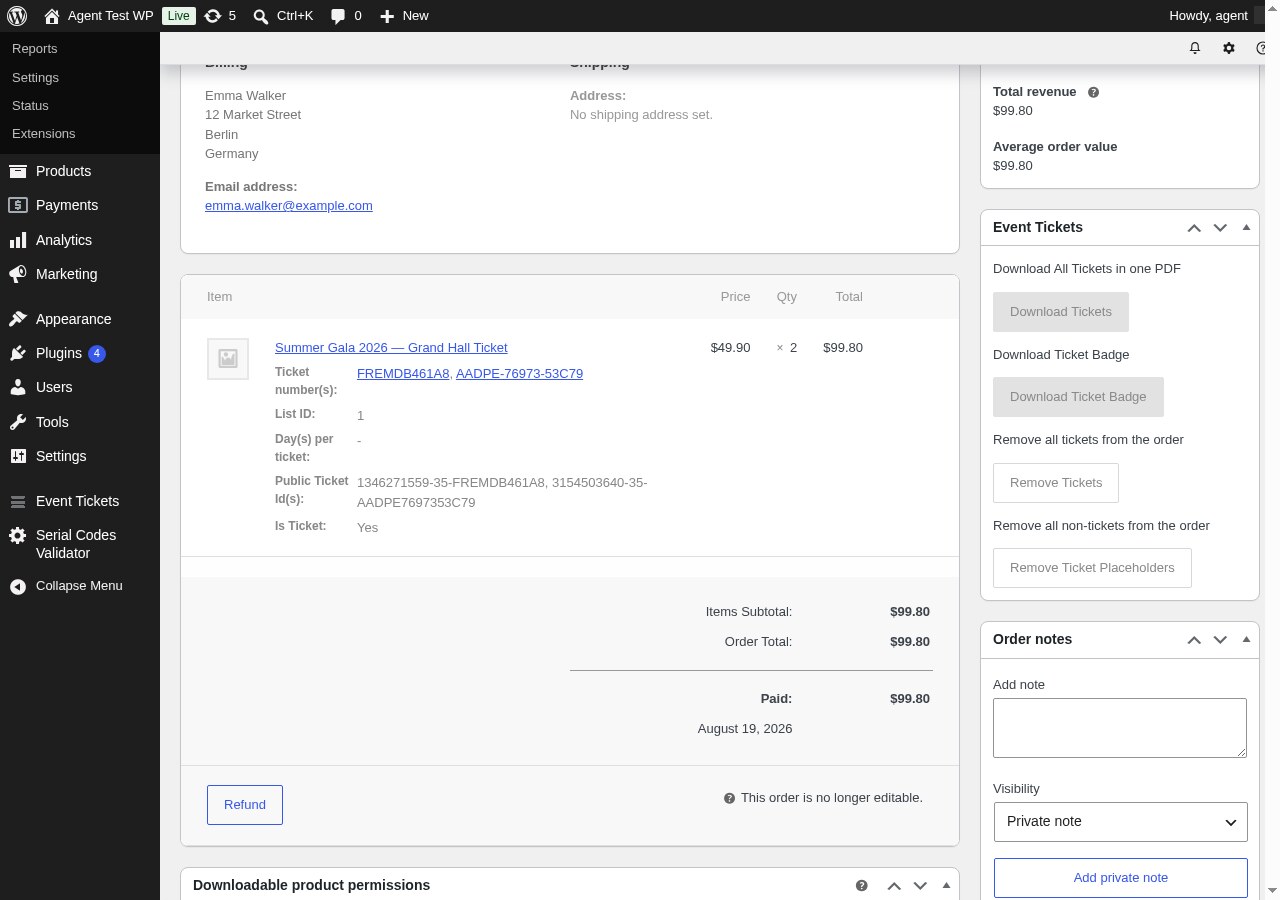
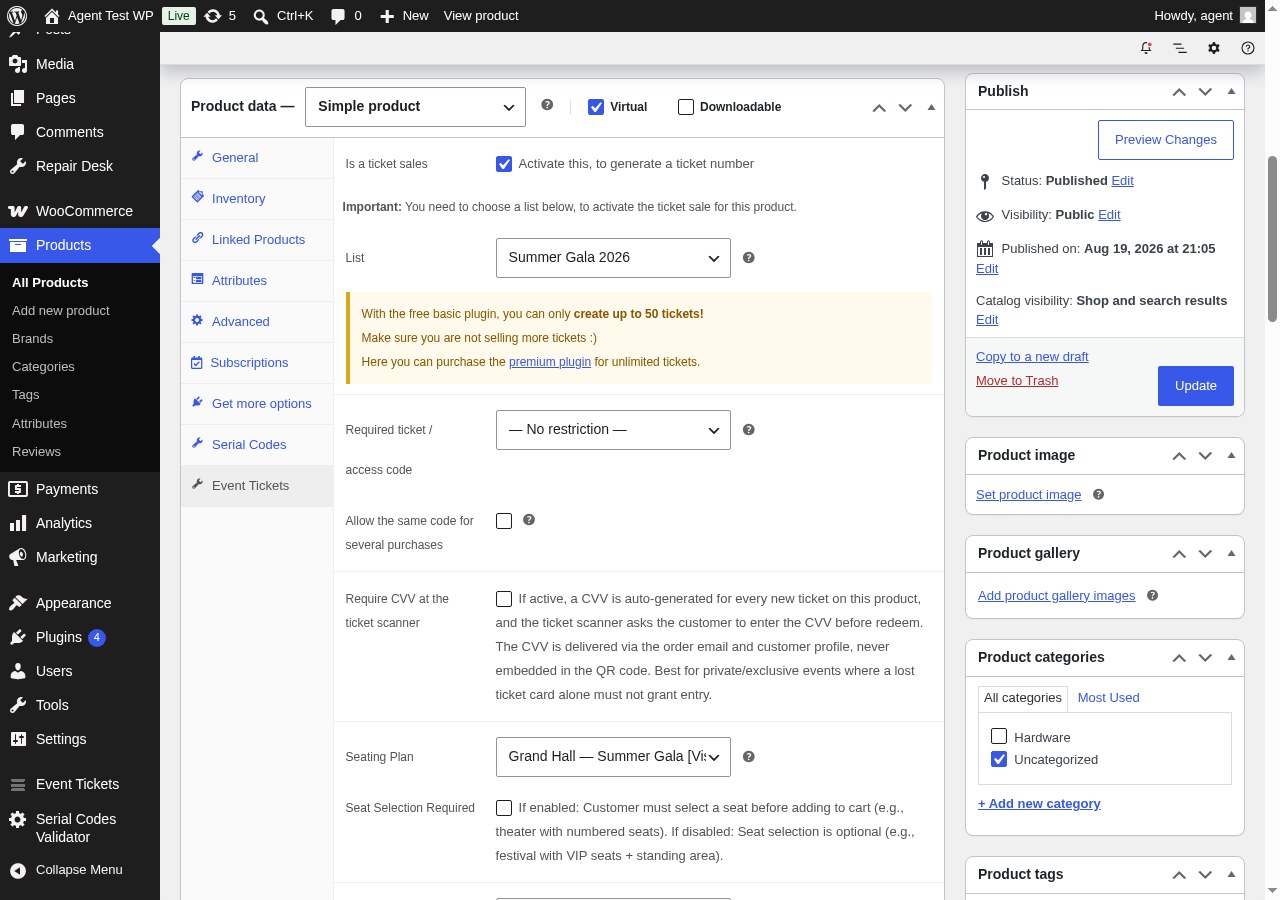
Installation
Requirements
- WordPress 5.0 or greater
- WooCommerce 6.0 or greater
- PHP 8.1 or greater (PHP 8.4 compatible)
- PHP extensions: php-curl, php-imagick
Installation
- Go to Plugins Add New in your WordPress admin
- Search for “Event Tickets with Ticket Scanner”
- Click Install Now, then Activate
- Go to Event Tickets in your admin menu and create your first ticket list
- Edit any WooCommerce product open the Event Tickets tab enable ticket sales
Quick Setup
The plugin extends WooCommerce so any product can become a ticket. Enable the checkbox on your product, assign a ticket list, and you’re ready to sell.
Tip: Set the product as “Virtual” so WooCommerce auto-completes the order and triggers ticket generation immediately after payment.
To test: Create a manual order in WooCommerce, set it to “Completed”, and check the order email for the ticket link.
For a step-by-step walkthrough, watch the quickstart video.
FAQ
-
Do I need any other plugins?
-
You need WooCommerce (free) to handle payments and orders. Everything else is included — no additional ticketing add-ons required.
-
Does this work without WooCommerce?
-
WooCommerce is required for selling tickets. However, you can use the plugin to manage and validate ticket lists manually without WooCommerce sales.
-
Can my team scan tickets without a WordPress account?
-
Yes! Premium includes Auth Tokens that give your door staff scanner access via a simple URL — no login required.
-
Does the scanner work offline?
-
The scanner is browser-based and requires an internet connection. For large events, the plugin includes offline fallback options to prevent interruptions.
-
Can customers choose their own seats?
-
Yes. Design your venue layout with the drag & drop seating designer, and customers will see an interactive seat map during checkout where they can pick available seats.
-
What ticket types can I create?
-
Single entry, multi-entry passes, family tickets (multiple tickets per purchase), memberships with expiration dates, and day-chooser tickets where customers pick their event date.
-
How are tickets delivered to customers?
-
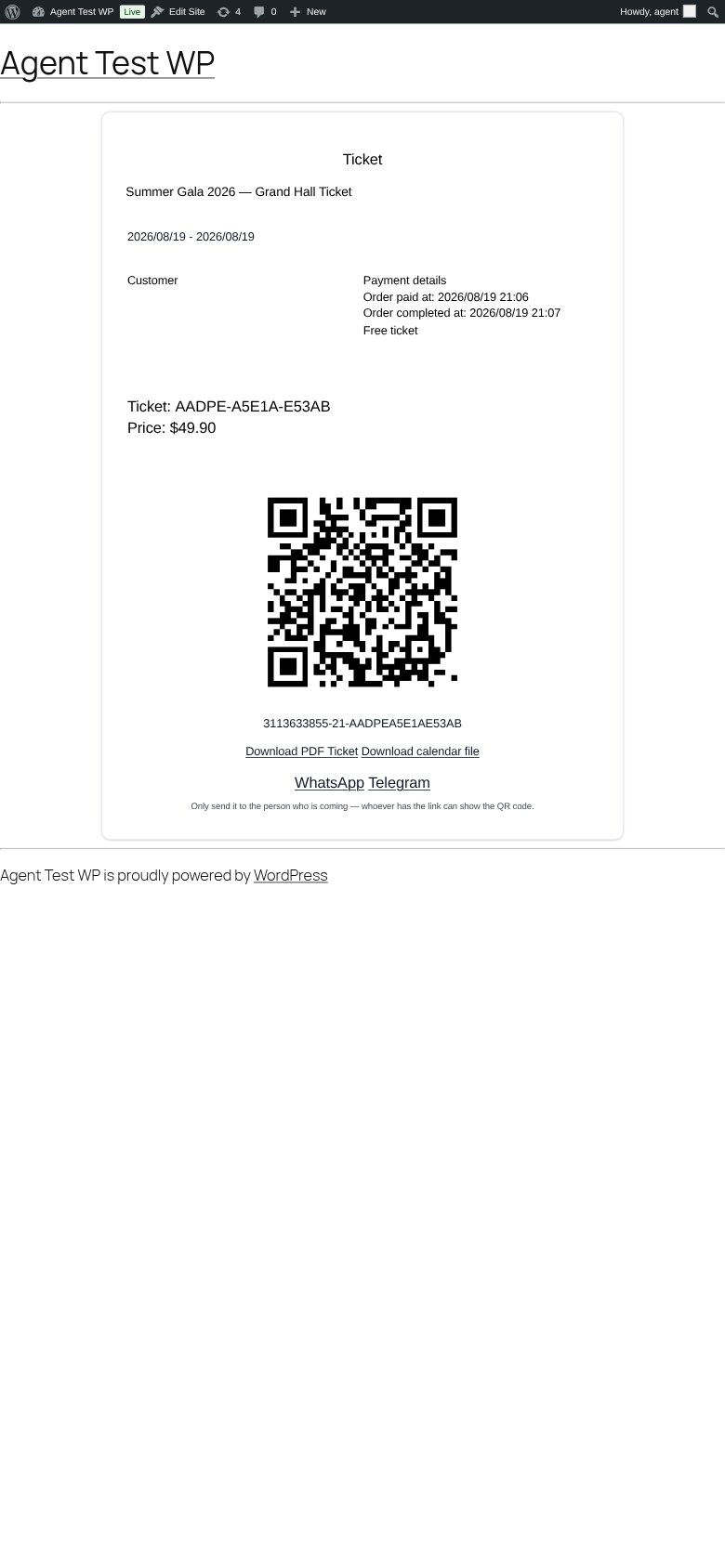
In the free version, the order confirmation email includes a link to download the ticket PDF and view the QR code. Premium allows attaching the PDF directly to the email and adding calendar invites (ICS).
-
What happens when an order is refunded?
-
The ticket is automatically deactivated, the assigned seat is released, and the ticket number is recovered for reuse.
-
Is the plugin compatible with WPML?
-
Yes. WPML is supported for multilingual ticket sales. The plugin also ships translations for German, Spanish, French, Italian, Hungarian, Japanese, Dutch, Portuguese, and Chinese.
-
What if I exceed the free ticket limit?
-
The free version supports up to 50 tickets. If you reach the limit, the plugin shows a notice in the admin area (your customers are never blocked from purchasing). Premium removes the limit entirely.
-
Can I use my own QR code or barcode scanner hardware?
-
Yes. The built-in scanner page accepts input from hardware barcode scanners in addition to camera-based QR scanning.
-
How do I prevent ticket fraud?
-
Every ticket number is unique. The scanner detects duplicate redemption attempts. Premium adds CVV verification and brute-force IP blocking for additional security.
-
What is the congress / attendee portal?
-
It’s a private event portal you can attach to a ticket product — organized into pages (start page, speakers, programme, downloads, sponsors, etc.) with text, schedules, files, image galleries and embedded videos. Ticket holders open it directly via their ticket, no separate account needed. You can password-protect individual sections, control when the portal opens and how long it stays available, and the page works offline as a mini PWA. It’s included in the free version; build it under the Congresses menu and assign it in the product’s Event Tickets tab.
Anmeldelser


Bidragsydere & udviklere
“Event Tickets with Ticket Scanner” er open source-software. Følgende personer har bidraget til dette plugin.
Bidragsydere
Oversæt “Event Tickets with Ticket Scanner” til dit eget sprog.
Interesseret i udvikling?
Gennemse koden, tjek SVN repository, eller abonner på udviklerloggen via RSS.
Ændringslog
3.1.9 – 2026-08-26
- Fix: The “Check License” button in the settings did nothing since 3.1.6 – it showed “Checking…” forever and never contacted the license server, and after saving a license key the page never confirmed the activation. A helper function used by the button was defined in a place the button could not see, so the click stopped with an error before the request was sent. Your license was still checked in the background as before – only the visible check and the confirmation after entering a new key were dead. Moving the helper where every part of the settings page can use it brings both back.
3.1.8 – 2026-08-26
- New: Fields that another plugin adds to an order line – for example the answers of a product add-on plugin – can now be shown as a column in the ticket list. Switch on “Display a column with the extra fields of the order line” in the settings. Until now those answers were only visible by opening each order, which is why shops with more questions than our two per-ticket fields had to build their own list. A second setting hides individual fields by name, for answers that belong in the order but not in a list. The values belong to the whole order line, not to a single ticket: an order line for three tickets carries one set of answers.
- Fix: A seating plan assigned to a single variation is now actually used in the shop. The product editor has offered a “Seating Plan Override” per variation for a while and saved it correctly, but the shop only ever read the parent product: the seat map on the product page never changed when a customer picked another variation, the cart notice and the seat check when adding to cart used the parent’s plan as well. Picking a variation now swaps the map to that variation’s plan, and a product whose plan only exists on its variations shows a map at all for the first time. Products without variations are unaffected.
- Tweak: In the variations of a ticket product, the label “This variation is NOT a ticket product” no longer sticks to its checkbox. It now keeps a fixed gap, so the line reads as a label and a box instead of one run-on word.
- New: For plugin developers: fields that your plugin collects at checkout can be listed inside Event Tickets, right where our users write their ticket template. Fill the filter saso_eventtickets_template_order_fields with your fields – key and name are enough – and shop owners no longer have to look up a meta key in the database to print your field on a ticket. The heading above them is your plugin name, taken from the plugin your callback lives in; give your own heading once as the array key if you prefer. Fields of different providers are never merged, not even when two of them pick the same heading. Reading the value itself never needed us: a ticket template prints any order meta with {{ ORDER.get_meta(“your_key”) }}. The list sits under the replacement tags on the options page and stays empty until a plugin registers something – if yours is missing, ask its provider.
- New: A new setting decides from which order status a seat counts as sold: “Mark seats as sold from this order status”. Until now a seat only turned red when the ticket number was created, which is when the order is paid – with a cash voucher or a bank transfer that can be days later, and until then the seat stayed available for everyone else. Set the status to “pending payment” and the seat is gone the moment the order is placed, while the ticket still follows on payment. The default keeps the previous behaviour. The ticket number is written onto the same seat afterwards, so cancelling an order still frees it.
- Fix: A seat now turns red on the seat map when the order is paid, even if the customer took their time or paid later. Selecting a seat reserves it for a while – by default a quarter of an hour – and the plugin marked exactly that reservation as sold when the order was completed. If the reservation had run out in the meantime, and it always has when payment arrives days later through a cash voucher or a bank transfer, there was nothing left to mark, and the plugin treated that as done. The order carried the seat correctly, the seat map kept offering it to everyone else, and the same seat could be sold twice. The sale is now written to the seat map in any case, and a second run of the ticket creation cannot enter the same seat twice. Shops with instant card payment were affected as well whenever a checkout took longer than the reservation.
- Fix: A one-day event no longer prints its date twice on the ticket. When no end date is entered, the plugin fills in the start date internally so the ticket stays valid until the end of the event day – and the printed date treated that filler like an entry, so “12.09.2026 19:00” became “12.09.2026 19:00 – 12.09.2026”. Only the date you actually entered is shown now: a start alone stays a start, a real end date still produces a range, and an end time on the same day still shows as “19:00 – 23:00”. The same applies to the date picker: a ticket for a chosen day shows that day once instead of “15.06.2026 19:00 – 15.06.2026”. For template authors: TICKET.end_date is never empty for the same reason, so testing it tells you nothing. Two new variables do: TICKET.is_end_date_set and TICKET.is_end_time_set.
3.1.7 – 2026-08-24
- Fix: Removing a single ticket number from an order left that number on the order line. The number was freed in the ticket list, but the order, the email and the invoice PDF kept showing it, and it no longer lined up with the public ticket numbers next to it. The number was compared in its internal spelling against the one printed on the order, which never matched, so nothing was ever removed. Orders with several tickets on one line are the ones affected.
- New: For developers: the decision whether an order line gets a ticket now lives in one place and can be overruled with the filter saso_eventtickets_wc_order_item_is_ticket. It exists for shops where another plugin splits one product into several order lines – split VAT or invoicing plugins – so that only the original line carries the ticket while the other lines stay bookkeeping. Nothing changes unless the filter is used.
- New: For developers: the order manager now answers, per order line, how many ticket numbers a line is supposed to carry and which lines are still short of them (getExpectedTicketAmountForItem, countOrderItemsWithMissingTicketnumbers, orderNeedsTicketNumbers). Ticket creation uses the same calculation, so a tool that looks for missing numbers and the code that draws them can no longer drift apart. The premium bulk assignment is the first user.
- New: The ticket export now has its own column for the value you ask per ticket (the product setting “Request a value for each ticket from dropdown”). Until now only the name per ticket had one, so the answer was in the export but buried inside the raw meta column, where a spreadsheet cannot filter or sort it. The column stays in the file even when a product does not ask for a value, so the header does not change from export to export.
- Tweak: An extra safeguard so a product that is not configured as a ticket can never receive a ticket number, not even when it sits in the same order as tickets. Selling through the shop was never affected – the check was already made for every single order line – but the entry point that other code (the premium plugin, custom code) can call did not make it itself. It does now.
3.1.6 – 2026-08-13
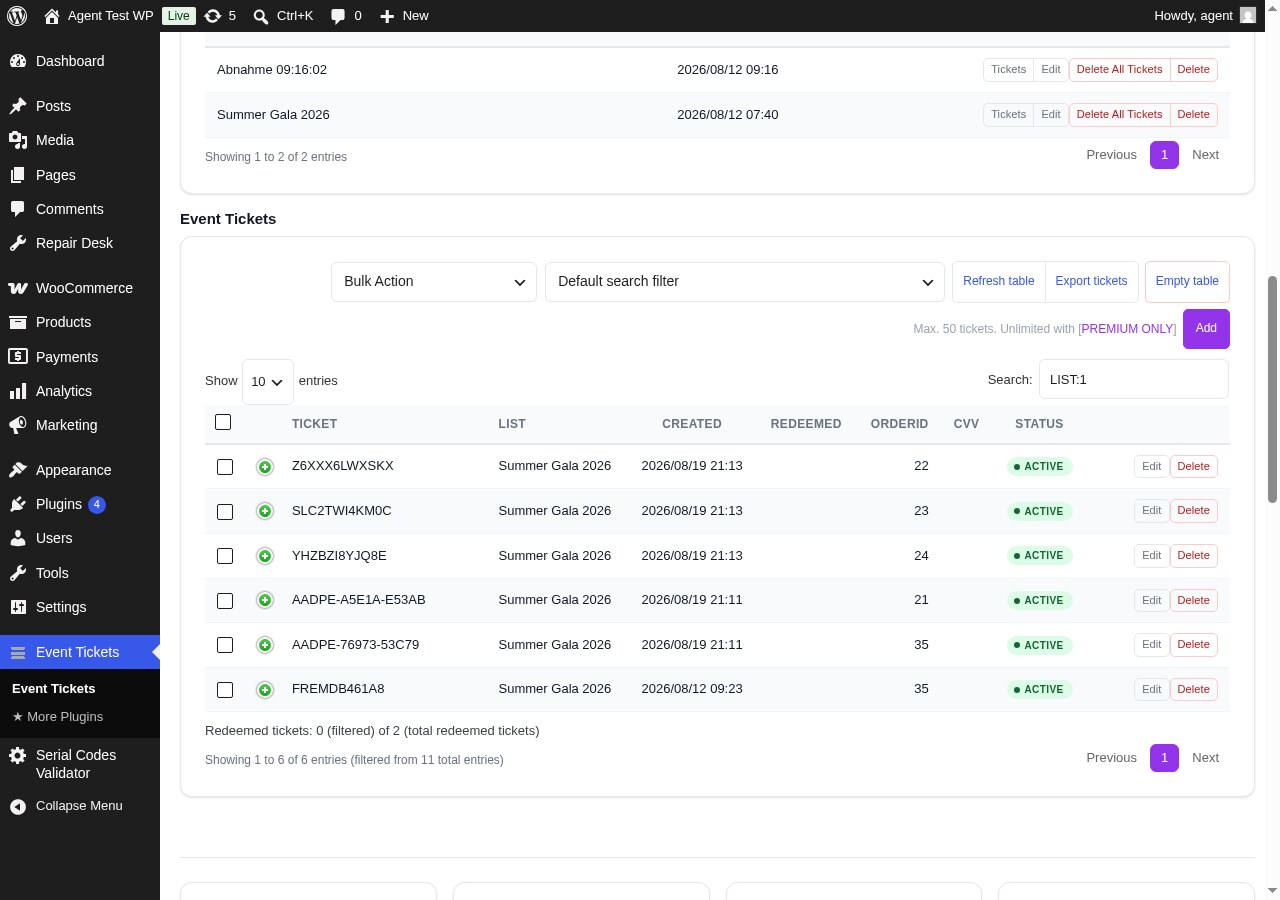
- Tweak: The admin area was redesigned. The top navigation is now a segmented control, the footer cards sit in a four-column grid, ticket status pills use semantic colors, and the primary action buttons share one style across the whole settings page.
- Tweak: The support footer now has a “Rate this Plugin” card linking to the WordPress.org review page, so the four footer cards fill one row.
- Fix: The “Dismiss” button of the version-notice box sat outside the card; it is now inside the card where it belongs.
- Fix: The Dashicons inside primary (lila) buttons inherited the WordPress default blue and clashed with the background; they are now white.
- Tweak: The ticket scanner and the ticket detail page now feel like one product. A design system was added – CSS custom properties for colors, spacing and radius, a BEM class structure on top of the existing IDs – and the parts that grew ugly over the years were cleaned up (hard-coded black border on the ticket box, the <center> tag on the scanner, the orphaned button_ok.png / button_cancel.png images). Every existing ID and class is still there, so a custom CSS file you wrote for an earlier release keeps working.
- Tweak: On the scanner page the ticket information no longer appears inline after a scan – the event name, date and seat only filled the space between the reader and the buttons, and on a phone the layout jumped around while the answer was on the way. While the scanner is waiting for the answer, the area shows a loading hint; as soon as the ticket is retrieved, a compact summary card appears (heading, title, date) with a color that matches the ticket state – green for valid, orange for expired or not yet redeemable, red for already redeemed. The full details open behind an “Show ticket info” button as a full-screen overlay with a close button, so the scanner display stays clean.
- Tweak: On the scanner the option row was moved up next to the buttons, so the “Scan and Redeem immediately” checkbox and its peers are visible right where the action buttons are. A new “Use classic layout” checkbox sits next to the existing “Use old ticket scanner library” one and toggles the scanner layout via a URL parameter – the same pattern that toggle uses.
- Tweak: The standalone ticket scanner is no longer preceded by a “Ticket Scanner” headline – it looks like a scanner device now, not like a page. On the public ticket view the wrapper no longer carries a hard border; the content sits directly on the page, with only the page’s own padding for air. Scanner buttons are now 48 minimum height (56 for primary actions), so the person at the door in January gloves does not have to fight the touch target.
- Fix: The spinner shown while the scanner waits for the server was invisible on the modern layout – the CSS class that animated it lived only inside the legacy HTML page. The animation is now defined in the design system stylesheet, so the spinner shows wherever it is used.
- Fix: Three button styles in the scanner used three different looks – one was a bare HTML button, one used a class the stylesheet had never heard of, and one toggled between gray and green via inline JavaScript. They are now all built on the same BEM class, and the disabled state has a real visual treatment instead of just disappearing.
- Fix: The “Badge” and “PDF” buttons on the scanner did nothing to indicate the download was on the way. They are now disabled while the file is being fetched and show a small spinner inside the button label, restoring the original label as soon as the download is delivered (or fails).
- Tweak: The “AI Support Bot” card is gone from the support view. It answered from a knowledge base we stopped keeping up to date, and an answer about last year’s plugin is worse than none. Documentation, release notes and the support address are where they were.
- New: A ticket can be passed along from the ticket page. On a phone the usual share sheet opens – WhatsApp, Telegram, Signal, mail, whatever is installed – on a desktop browser WhatsApp and Telegram are offered as links. That is how the second ticket reaches the friend who is coming along, and how the ticket gets from the laptop to the phone. Your shop sends nothing itself; the customer does. The page says out loud that whoever receives the link can show the QR code. Can be switched off (“Let customers send their ticket on”), and it is shown in every kind of ticket sale, including vouchers.
- Tweak: The last pieces of premium licensing left this plugin. The “Check License Server” button and the update dialog that appeared after entering a license key are gone – both reached out to our server from the free plugin, which is not what a plugin on WordPress.org should do. Updating premium is the premium plugin’s own job (“Check license & update” next to the license key, version 1.7.3 and newer). What stays here is the display: the license status and a button to refresh it, which asks the premium plugin to do the checking.
- New: A message you can set for events where tickets are still sold at the door – it is added to the “sales closed” text when the premium version marks a product that way, so a buyer who arrives too late for the online sale is not left with a dead end.
- Fix: Tickets without a WooCommerce order could not be redeemed by typing their number into the scanner – the very way a printed card is meant to be checked at the door. It failed with “#9302” unless a second, separate option was switched on as well. Allowing tickets without an order is now enough.
- Tweak: The scanner said “Ticket is NOT paid ().” for a card that was never sold in the shop – a defect message for the case the feature is made for, with an empty bracket on top. It now says the ticket was handed out directly.
- Tweak: In the product’s Event Tickets tab and in the ticket list, option keys no longer appear in customer-facing text. The settings page hides them in the entry view as well and shows them under “All options”, where support answers need them.
- Tweak: The “Getting Started” checklist now reads the real state of your installation instead of guessing from counters. Until now it ticked off “assign a list to a product” as soon as any ticket existed anywhere, and it congratulated you for the ticket list that the plugin creates by itself. It also no longer counts a fixed four steps: what needs doing is what is listed.
- Tweak: In the product’s Event Tickets tab, the ticket switch and the list now come first and the note about the free ticket limit follows below – it used to be the first thing in the tab, in red, before the setting it belongs to.
- New: After activation the plugin says where to go next, once, with a button – instead of leaving you to find the menu entry at the bottom of the sidebar. Installations that already have tickets are not bothered with it.
- New: The setup wizard now ends by showing what it actually switched on for you (“redemption locked until the event starts”, “scan redeems immediately”, …). The defaults fit most shops – you just could not see them. It also stops claiming you are all set while listing things you still have to do: what is left is one product, and the button goes straight there.
- Tweak: The warning about “Plain” permalinks was a dialog on every single page load, with no way to act on it. It is now the first step of the setup check, with a button that opens the permalink settings – and it is the one thing that still shows up even after you dismissed the setup check, because without it the ticket page and the scanner cannot be reached.
- Tweak: The setup wizard now remembers which kind of sale you picked. Until now the settings page asked the same question a second time, minutes after the wizard had already asked it.
- Fix: In dialogs, the recommended button is highlighted again instead of whichever button happens to sit on the left. In the setup wizard that meant “Skip” and “Back” looked like the main action while “Start Setup” and “Apply & Finish” looked secondary.
- Fix: A tip in the setup wizard showed “⚡” as plain text instead of the symbol, and the product tab said “Make sure your are not selling” instead of “you are”.
- Fix: The free version asked for a premium license key. On a plain installation without the premium plugin, a dialog appeared saying “Thank you for using the Premium version!” and asked for a key that such an installation never had — a comparison error made “no premium version” look like “premium version installed, key missing”. The dialog now only appears when the premium plugin is really installed.
- New: The plugin page now shows when the plugin was last updated, next to the version, with a link to the changelog of every release. Whether a plugin is still being looked after is a fair question, and the answer belongs where you are, not on a sales page.
- New: A setting that belongs to a different kind of sale but was changed anyway is now shown in the filtered view instead of being hidden – highlighted, with a note that it can make your shop behave unexpectedly and a “reset to default” button right next to it. Those are exactly the leftovers that cause the “it does something I never asked for” cases.
- New: “Restore the defaults of this view” resets only what is currently in front of you, and lists beforehand which settings would change. The existing button that resets all options is untouched.
- New: Existing installations are asked once which kind of ticket sale they run. Whoever answers gets the filtered view, whoever declines keeps all options and is not asked again.
- New: The settings page can now show only the settings that belong to your kind of ticket sale. Pick your event type once – event tickets, day passes, memberships or vouchers – and the page starts with the handful of settings that decide how your shop behaves (14 instead of 306). From there it is one click to everything that belongs to your event type, and one more to all options; nothing is ever hidden for good. The search always looks through every setting and tells you when a match sits outside your event type.
- New: The settings page has a search field. Type two letters and only the matching settings stay on the page – it searches the name, the description and the option key, so you can also paste the key from a support answer or from the documentation (“wcTicketHideTicketAfterEventEnd”). The number of matches is shown, the search term is highlighted, “Esc” clears the field and the “/” key jumps into it. An empty field brings the page back exactly as it was.
- New: Once the setup check has nothing left to report, you can dismiss it for good with the small x. From then on it is not only hidden but no longer worked out either – a finished installation pays nothing for a check it does not need. Clear “setupStatusDismissed” in the settings export to bring it back.
- New: The settings page now opens with a short setup check that reads your actual installation instead of showing you more options: is a product connected to a ticket list, and does your door team have access to the ticket scanner. Every open step has a button that takes you straight to the right place; once both are done the check simply confirms that you can sell and check tickets.
- New: Tickets can now work entirely without a WooCommerce order, for printed cards you hand out yourself. Create the ticket numbers in a ticket list as before, switch on “Allow tickets without a WooCommerce order” — either globally in the WooCommerce settings or for a single ticket list — and the scanner accepts them, shows them and redeems them. Both switches are off by default. Note what you give up for those tickets: the plugin can no longer verify them against a paid order, only that the number exists, is active, has not been redeemed yet and belongs to its list. Tickets sold through WooCommerce are untouched and keep the full check.
- Tweak: This plugin no longer contacts the license server of the premium version. That check now lives in the premium plugin itself, where it belongs — this plugin only stores the answer and uses it to switch premium features on or off. If you use the premium version, update it to 1.8.0 or newer; until you do, your premium features stay switched on and the plugin asks you to update instead of expiring them.
- New: Scanner auth tokens can now be restricted to ticket lists, not only to products (“Bound to ticket list(s)” when editing a token, comma separated list ids, empty means all). A door team then only redeems the lists it is responsible for — for a venue with its own ticket list, one token per venue. This is also the only restriction that can apply to tickets without an order, because those have no product to bind a token to.
- New: A ticket list can carry its own event window (“From” / “Until” with date and time). It applies to tickets without an order, which have no product to take event times from, and is governed by the same scanner options as before — no redemption before the start, none after the end, or none after the start. Empty means no time limit.
- New: Seat order can now be arranged by hand. A “Seat Order” button above the seat list of a simple (dropdown) seating plan opens a drag-and-drop list; the order you save is the order buyers see in the seat dropdown. Until now the order was fixed to the sequence in which the seats were created.
- Tweak: The action buttons of the seating plan list no longer wrap onto a second line — the column is wider and kept on one line.
- Fix: The “Go to Seating Plans” and “Create one first” links in the product panel, and the admin link passed to the frontend seat selector, pointed to a non-existent admin page (
?page=sasoEventTickets). Following them produced “Sorry, you are not allowed to access this page.” The links now use the correct page slug so the seating tab opens as expected. - Tweak: Plugin description and FAQ now clearly state the 50-ticket free-version limit and the exact free-tier caps (5 ticket lists, 1 seating plan with 20 seats, 3 scanner auth tokens).
- Tweak: Removed unverified social-proof claims (“4.9/5” rating, “1,000+ event organizers”) and replaced with the verifiable WordPress.org metric (“Active on 1,000+ WordPress sites”).
- Tweak: Removed named-competitor comparison (Eventbrite, Ticketmaster) from the plugin description.
- Tweak: “No per-ticket fees” clarified to “No per-ticket service fees” with payment-processor qualifier.
3.1.5 – 2026-08-10
- New: Online sales can now be stopped a set number of hours before the event starts (“Stop online sales before the event starts” in the WooCommerce settings, off by default; when switched on it stops sales two hours before the event unless you change the number). Useful when you also sell at the box office and want the online shop to close first. Products without an event date are never affected; for day-chooser products the date the customer picked counts. Buyers are told when they add the product to the cart, and a cart that was filled before the cutoff is blocked at checkout. The message is configurable.
- Tweak: When online sales have closed for a ticket, the buy button is now hidden on the product page and in product lists, and a short line explains why, instead of letting the buyer add the ticket and only failing afterwards. This also covers direct “add to cart” links. Products without an event date, day-chooser products (the buyer picks the date later) and everything that is not a ticket are never affected, and the shop admin still sees the normal buttons in the backend.
- Tweak: If a buyer leaves a ticket in the cart until online sales close, WooCommerce drops it from the cart — the wording is now yours instead of WooCommerce’s “please contact us if you need assistance”, and can be changed in the settings (“Message when a closed ticket is dropped from the cart”). Items removed for any other reason keep the WooCommerce text.
- Fix: The “Same-day cutoff time” of day-chooser products was evaluated in the server’s timezone instead of the shop’s, so on a site ahead of UTC it took effect hours too late — with a shop in Central European Summer Time, a cutoff set to 17:00 only blocked today’s date from 19:00 on. It now applies at the time you entered, in the timezone configured in WordPress, both in the date picker and when the cart is checked. The date picker previously also used the buyer’s own browser clock, which gave visitors abroad a different cutoff than the one enforced at checkout; it now follows the shop’s clock as well.
3.1.4 – 2026-07-26
- New: Optionally require a valid ticket or access code to purchase a product. Pick the required event/code list in the product’s Event Tickets tab — until you do, nothing changes for any product. Buyers enter their code in the cart and can only check out with a valid, unused code from that list. Use it for presale and access codes, or to require a ticket from an earlier event — for example a group-stage ticket in order to buy the final. Free.
- New: Per product, the same code can optionally unlock several purchases (“Allow the same code for several purchases”). Off by default, so each code unlocks exactly one purchase.
- New: The cart tells the buyer straight away whether the entered code was accepted, is already used, or is not valid for that product — instead of only failing at checkout.
- Fix: The global switch “Allow requiring a ticket or access code to purchase” now really disables the feature everywhere when switched off. Previously it only controlled the cart script, while checkout still demanded a code for any product that had a list assigned — which, combined with the cart field not submitting the code, could make such a product impossible to buy.
- Fix: On hosting accounts where the server’s temporary directory cannot be written to (common with Plesk, open_basedir or PHP-FPM private temp directories), ticket PDFs were never created. The plugin still passed the file path on, so the PDF merge failed and the order email was sent without the ticket and without the calendar/info attachment — with no visible error. The plugin now falls back to a folder inside the WordPress uploads directory, and reports a clear, actionable error if no writable location exists at all. The same fallback now applies to badge PDFs and to all email attachments, which previously failed silently on these hosts as well.
- Fix: Merging ticket PDFs no longer aborts completely when a single source file is missing. Unreadable files are skipped and logged individually, so the remaining tickets are still delivered.
- Fix: The “Delete All Tickets” button on a ticket list failed with a server error instead of deleting anything. The button never worked since it was introduced; it now removes all tickets of the selected list, including their WooCommerce order data. Long lists are deleted in small batches with a progress bar, so even lists with many thousands of tickets no longer run into a server timeout.
- Fix: On hosts that run a different PHP version for WP-CLI than for the website (IONOS and similar split-PHP setups), the plugin’s template-engine PHP 8.1 check no longer aborts WP-CLI runs with a fatal error. Ticket and scanner pages are never rendered from WP-CLI, so the check is now skipped in CLI mode. This prevents some hosts from auto-disabling the plugin after a WP-CLI or cache-build run. Website behaviour is unchanged — the actionable PHP 8.1 notice still appears when a ticket or scanner page is opened under an older PHP in the browser.
3.1.3 – 2026-07-12
- New: Interface translations expanded to the full language set — added Arabic, Czech, Danish, Greek, Hindi, Korean, Norwegian Bokmål, Polish, Romanian, Russian, Swedish, Turkish, Ukrainian, Traditional Chinese, plus corrected Japanese (ja) and French (fr_FR) locale files.
- Fix: When a server runs the plugin folder under PHP below 8.1 (required by the bundled template engine) — which can happen for files opened directly from the plugin folder even when the main site runs a newer PHP — the ticket and scanner pages now show a clear, actionable message instead of a blank 500 error. The message points to the “Ticket detail URL path” option and to enabling PHP 8.1+ for the whole hosting account.
3.1.2 – 2026-06-22
- Fixed: Support info no longer shows a broken “Own URL” with a double slash when no ticket detail URL path (compatibility mode) is set — both the displayed cards and the copy-to-clipboard text now show “(not set)” instead.
= 3.1.1 …