

Beskrivelse
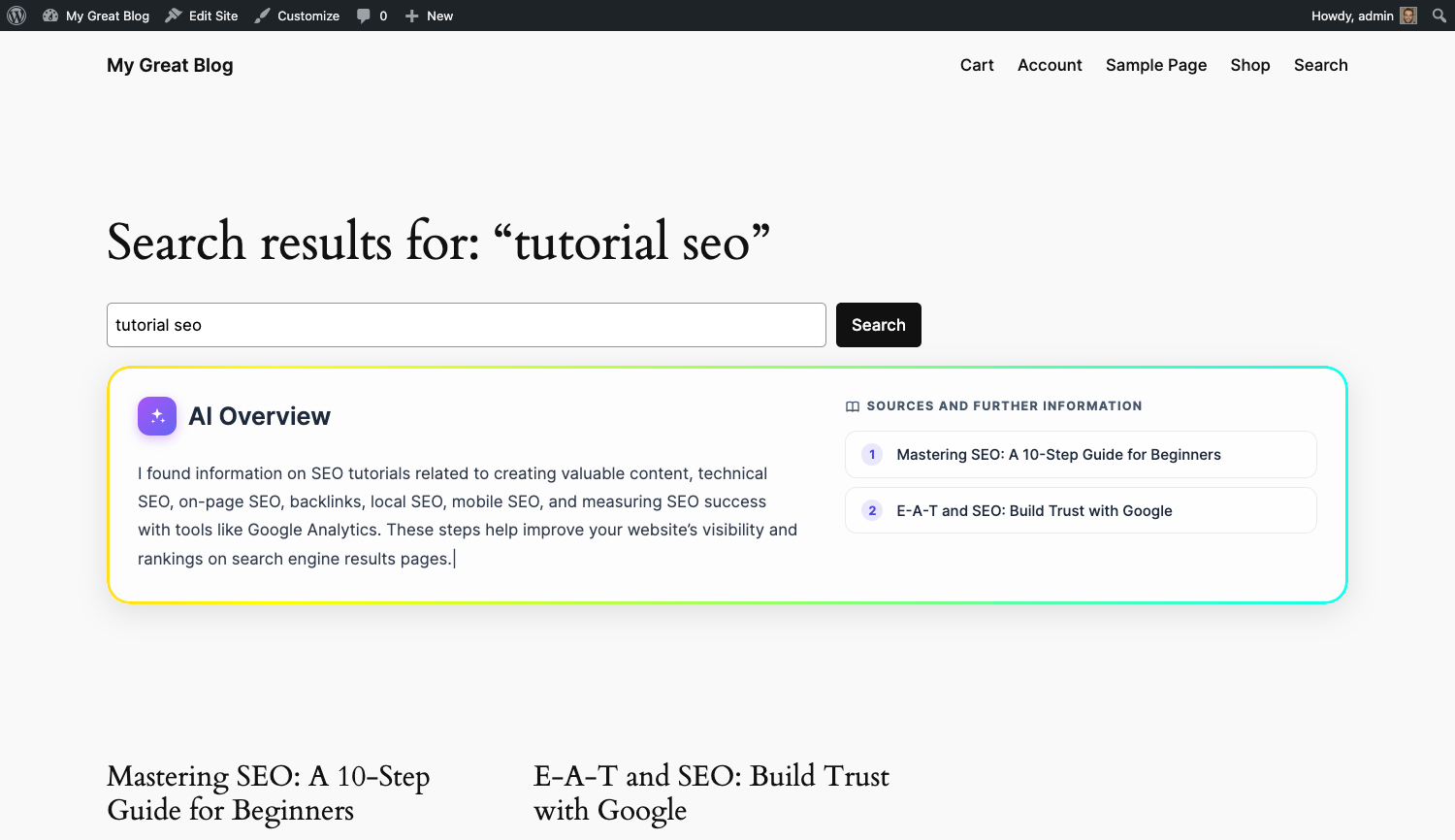
Creator Assistant Search is an add-on for Creator Assistant – Hub that brings AI-powered search to your WordPress site. When a visitor performs a search, the plugin retrieves the most semantically relevant content from your Qdrant vector database and generates a concise AI Overview (displayed at the top of the search results page) using OpenAI’s chat models.
How it works
- When a search query is submitted, the plugin converts it into a vector embedding via the Hub and queries your Qdrant collection for the most relevant content chunks.
- The matching chunks are assembled into a prompt and sent to the OpenAI Chat API to generate a short, direct answer.
- The answer is streamed progressively to the browser and displayed as an AI Overview panel above your search results, in both block themes and classic themes. Subsequent searches for the same query return the cached result instantly.
Key features
- AI Overview panel: a concise AI-generated answer appears at the top of every search results page, based exclusively on your own site content.
- Semantic search: results are ranked by semantic relevance (vector similarity) rather than keyword matching alone.
- Block theme and classic theme support: the AI Overview is injected via the
render_block_core/queryfilter in block themes, and via theloop_startaction in classic themes. - Animated UI: the overview uses the Hub’s animated border component and the typed-text effect for a modern look.
- Source attribution: the panel lists the source posts used to generate the answer.
- Language-aware: the AI response is generated in the language of your site.
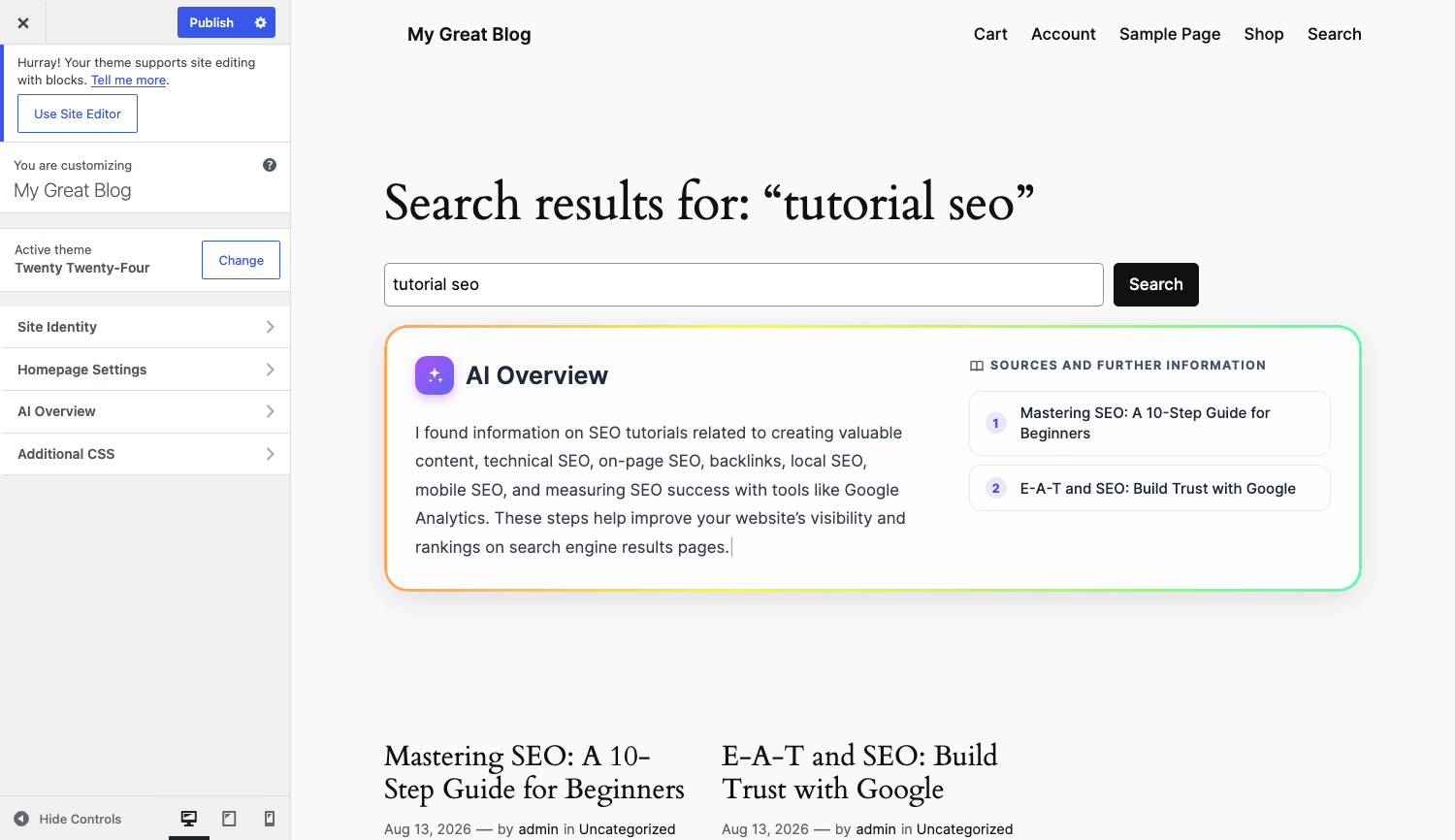
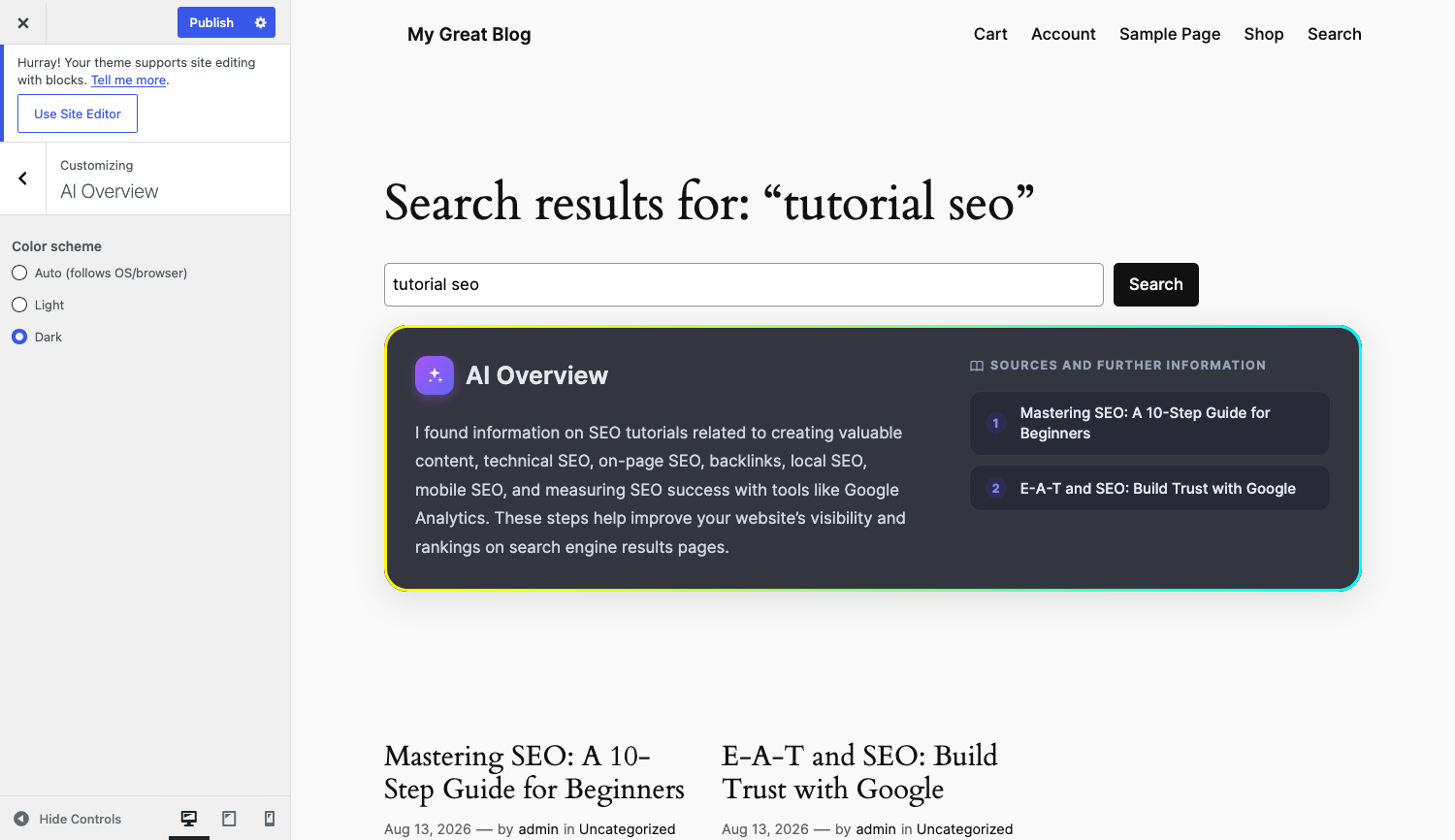
- Color scheme: choose between automatic (follows system preference), light, or dark mode for the AI Overview panel from the WordPress Customizer (Appearance Customize AI Overview).
- Streaming response: the AI answer is delivered via Server-Sent Events and typed progressively into the panel, with no page reload required.
- Extensible: exposes filters and actions so other add-ons can customise the sources list, script data, and prompt context.
Requirements
- Creator Assistant – Hub with OpenAI and Qdrant configured and at least one vectorizer active.
- WordPress 6.6 or higher.
- PHP 7.4 or higher.
External services
This plugin sends data to OpenAI to generate the AI Overview shown on your search results page. By using this plugin you agree to OpenAI’s terms and privacy policy.
- OpenAI: when a visitor performs a search, the matching content chunks retrieved from your Qdrant database (via Creator Assistant – Hub) are assembled into a prompt together with the visitor’s search term and sent to the Chat Completions API to generate the AI Overview answer.
- Service: https://platform.openai.com/
- Privacy Policy: https://openai.com/policies/privacy-policy
- Terms of Use: https://openai.com/policies/terms-of-use
This plugin relies on Creator Assistant – Hub for the OpenAI embeddings and Qdrant vector-search connections used to find relevant content for each query. See the Hub’s own “External services” section for details on that part of the data flow.
Data is only sent to OpenAI when a visitor performs a search on your site. Nothing is transmitted automatically upon activation.
Development
The source files for all compiled assets are included in the plugin under assets/src/.
Build tools required: Node.js (includes npm).
- Install dependencies:
npm install - Build JS and CSS:
npm run build- JS only:
npm run build:js(uses esbuild) - CSS only:
npm run build:css(uses PostCSS + Sass)
- JS only:
Source JS files are in assets/src/js/ and compiled to assets/dist/js/.
Source CSS/SCSS files are in assets/src/css/ and compiled to assets/dist/css/.
Skærmbilleder
Installation
- Install and configure Creator Assistant – Hub first. Make sure the OpenAI API key, Qdrant endpoint, and API key are saved and both connections show a green status.
- Upload the
creator-assistant-searchfolder to the/wp-content/plugins/directory, or install the plugin directly from the WordPress plugin screen. - Activate the plugin through the Plugins screen in WordPress.
- The plugin activates the Hub’s vectorizer automatically. Existing posts will be indexed by the Hub’s hourly background cron; new and updated posts are vectorized on save.
- Perform a search on your site. An AI Overview panel will appear at the top of the results once at least some content has been vectorized.
FAQ
-
Does this plugin work without Creator Assistant – Hub?
-
No. Creator Assistant Search is an add-on that requires Creator Assistant – Hub to be installed and configured. The Hub provides the OpenAI and Qdrant connections that this plugin relies on.
-
Which post types are included in the search?
-
By default, posts and pages are vectorized and included in search results. If you have Creator Assistant – Hub Pro, you can exclude specific post types from the Content tab in the Hub settings page.
-
Does the AI Overview appear for every search?
-
The AI Overview appears when the plugin finds at least one relevant content chunk for the search term. If no relevant content is found in your Qdrant collection, the standard search results are shown without the overview panel.
-
The AI Overview never appears: what should I check?
-
This usually means your content has not been vectorized yet. Vectorization is handled entirely by Creator Assistant – Hub: new and updated posts are vectorized on save, and existing posts are picked up by the Hub’s hourly WP-Cron batch, which requires WP-Cron to be running on your site. See the “How do I check whether the service is properly configured?” question in the Creator Assistant – Hub readme for the Site Health check and WP-Cron troubleshooting steps.
-
How long does the AI Overview take to appear?
-
The overview is generated asynchronously via Server-Sent Events: the page loads with the standard search results immediately. The AI answer is then streamed progressively into the panel character by character (typically within a few seconds). If the answer for the same query was already cached, it appears almost instantly.
-
Is the AI Overview cached?
-
Yes. The generated answer is cached for one hour using WordPress transients. Repeated searches for the same query within that window return the cached result without any OpenAI API call.
Administrators can bypass the cache for a specific search by appending
?cas_no_cache=1to the search URL (e.g.https://example.com/?s=shoes&cas_no_cache=1). This forces a fresh OpenAI call and overwrites the cached result. The bypass is only available to users with themanage_optionscapability and has no effect for regular visitors. -
Does the plugin modify my posts, pages, or theme files?
-
No. Creator Assistant Search is entirely non-destructive. It injects the AI Overview panel above search results using standard WordPress hooks (
render_block_core/queryfor block themes,loop_startfor classic themes). No theme files are ever touched. Your posts, pages, and all their content remain exactly as they are. -
Are my visitors’ search queries stored in the database?
-
Search queries are never stored in plain text in your database. The plugin uses an anonymous hash of the query as a transient cache key for the AI response. The cached answer expires automatically after one hour and is then deleted. No query logs, no user identifiers, no permanent records.
The search term itself is sent to OpenAI to generate the AI answer (subject to OpenAI’s privacy policy), but it is not stored persistently by this plugin.
-
Does the AI Overview replace my existing search results?
-
No. The AI Overview is an additional panel displayed above your standard search results. It does not remove, reorder, or replace any of them. If no relevant content is found in your Qdrant collection, the standard results are shown without any panel at all.
-
Can I customise the appearance of the AI Overview?
-
Yes, in two ways:
- Color scheme: go to Appearance Customize AI Overview and choose between automatic (follows the visitor’s system preference), light, or dark mode. Changes are previewed live in the Customizer.
- Custom CSS: the panel uses CSS classes prefixed with
creator-assistant-search__ai-overviewthat you can override in your theme stylesheet. The animated border and typed-text effect are provided by Creator Assistant – Hub’s shared assets.
Anmeldelser
Der er ingen anmeldelser for denne widget.
Bidragsydere & udviklere
“Creator Assistant Search” er open source-software. Følgende personer har bidraget til dette plugin.
Bidragsydere
Oversæt “Creator Assistant Search” til dit eget sprog.
Interesseret i udvikling?
Gennemse koden, tjek SVN repository, eller abonner på udviklerloggen via RSS.
Ændringslog
1.0.0
- Initial release.
- AI Overview panel with semantic search via Qdrant and OpenAI Chat API.
- Support for block themes (
render_block_core/query) and classic themes (loop_start). - Animated border and typed-text UI components from Creator Assistant – Hub.
- Source attribution list below the AI answer.
- Language-aware AI responses using the site locale.
- One-hour answer cache (transients) to reduce API usage.
- Color scheme setting (auto/light/dark) in the WordPress Customizer with live preview.
- Streaming AI response via Server-Sent Events (SSE).
- Extensibility hooks:
creator_assistant_search_query_no_answer(action, fired when the AI returns no usable answer),creator_assistant_search_sources(filter, customise the sources list),creator_assistant_search_script_data(filter, customise JS data),creator_assistant_search_get_prompt_context(filter, access prompt context for other add-ons).